 ResponsePro
The problem with running leads from multiple places
Most contractors who have been in business for a few years are running leads from at least three or four sources at the same time: their website, Google Local Services Ads, maybe Angi or Thumbtack, and sometimes Facebook. Every source costs money. Most contractors have no idea which ones are actually producing jobs versus which ones are burning budget on leads that never convert.
The reason is simple: when every lead comes in as a phone call or a generic contact form submission, they all look the same. You cannot tell whether the job you booked last Tuesday came from your Google Ads, your Angi listing, or the contact form on your website. Without that data, you are guessing at where to spend your marketing dollars.
ResponsePro solves this with a single source field that you pass when a lead comes in. Every lead in your dashboard is tagged with where it came from, so you can see at a glance which channels are producing and which ones are not.
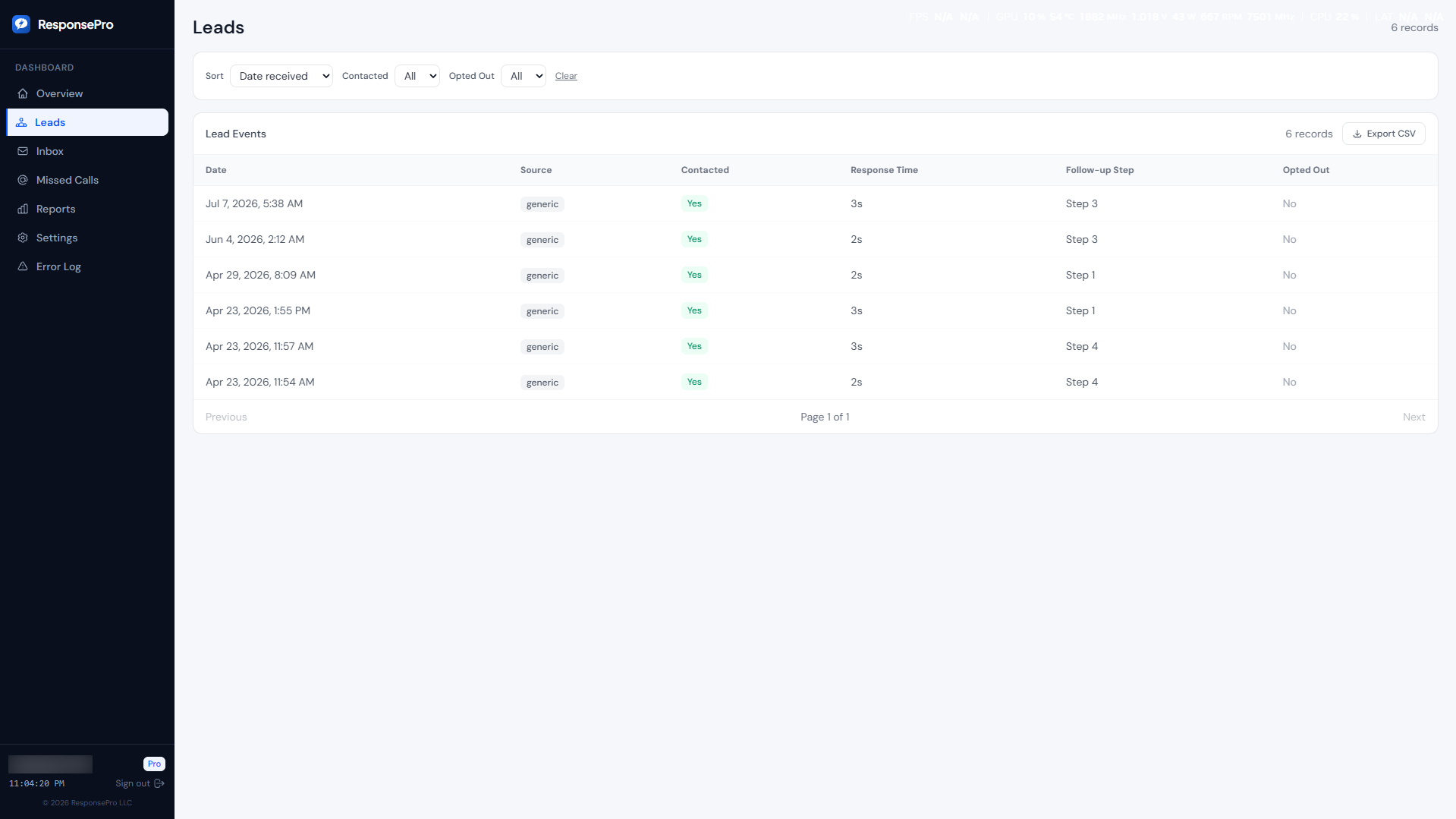
How the source field works
When you send a lead to your ResponsePro intake URL, you include a source field in the payload. This is a plain text string — you define the values yourself. ResponsePro stores it with the lead and displays it in your dashboard.
{
  "name":    "Sarah Johnson",
  "phone":   "5405559876",
  "email":   "sarah@example.com",
  "message": "Need a quote for kitchen remodel",
  "source":  "google_lsa"
}
The source value is stored exactly as you send it. Use whatever naming convention makes sense to you — just be consistent so the dashboard filters work cleanly.
Recommended source values by channel
| Channel | Recommended source value | How to set it |
|---|---|---|
| Your website contact form | website | Hardcode in your form's JavaScript |
| Google Local Services Ads | google_lsa | LSA setup guide (GHL or onboarding) |
| Google Ads (paid search) | google_ads | Pass via hidden form field with UTM value |
| Facebook / Instagram Ads | Zapier guide | |
| Angi (formerly Angie's List) | angi | Angi setup guide |
| Thumbtack | thumbtack | Zapier guide or dedicated landing page |
| HomeAdvisor | homeadvisor | Zapier guide |
| Referral / word of mouth | referral | Use a separate landing page or form |
| Go High Level CRM | ghl | Set as a static field in your GHL webhook |
Tracking UTM parameters from Google Ads
If you are running Google Ads and want to know which campaign or keyword produced a lead, you can pass UTM parameters through a hidden form field. Here is how to do it with a standard HTML form:
<!-- Hidden field auto-populated from URL params -->
<input type="hidden" id="leadSource" name="source" value="website">

<script>
// Overwrite source with UTM value if present in the URL
const params = new URLSearchParams(window.location.search);
const utmSource = params.get('utm_source');
if (utmSource) {
  document.getElementById('leadSource').value = utmSource;
}
</script>
With this in place, a visitor who clicked a Google Ads link tagged with ?utm_source=google_ads will have their lead automatically tagged as google_ads in your ResponsePro dashboard. Visitors who arrive organically will be tagged as website.
Setting up source tracking in Zapier
If you use Zapier to route leads from Angi, Thumbtack, or Facebook Lead Ads to ResponsePro, add a static value for the source field in your Zap's action step. Full walkthroughs for each platform are in the lead platform Zapier guide and the Angi setup guide.
Quick example for Facebook Lead Ads:
Trigger: Facebook Lead Ads → New Lead
Action: Webhooks by Zapier → POST
URL: https://intake.responsepro.app/your-client-id
Payload type: JSON
Data fields:
{
  "name":    "{{full_name}}",
  "phone":   "{{phone_number}}",
  "email":   "{{email}}",
  "message": "{{what_service_do_you_need}}",
  "source":  "facebook"
}
Replace the {{field_name}} tokens with the actual field names from your Facebook Lead Ads form. The source field is a static string — type it directly, do not map it to a form field.
What you can do with source data
Once your leads are tagged by source, your ResponsePro dashboard lets you filter and compare. Practically, this means you can answer questions like:
- Google LSA is sending 20 leads a month. How many replied to the first SMS? How many booked?
- Angi leads are replying at a lower rate than website leads. Is it the lead quality or the response time?
- Facebook leads are coming in but none of them are converting. Is it worth keeping the campaign running?
Most contractors who set this up realize within the first 30 days that one or two channels are producing the majority of their booked jobs, and one or two channels are producing volume but no revenue. That information alone is worth more than the cost of the software.
Using separate landing pages per channel
A more advanced approach is to create a separate landing page for each lead source, each with its own form that hardcodes the source value. This is useful when you cannot control the webhook configuration on the lead source side (some platforms do not support custom webhook fields).
For example, if Thumbtack does not let you add a custom field to their webhook, you can give Thumbtack a unique landing page URL. Anyone who arrives from Thumbtack fills out that form, which hardcodes source: "thumbtack". No UTM parameters needed, no webhook configuration required on Thumbtack's side.
Getting started
Source tracking requires no additional setup on the ResponsePro side — just start passing the source field in your lead payloads and it will appear in your dashboard automatically. Platform-specific wiring:
Or reply to your welcome email if you want help configuring sources during onboarding.
Not a client yet? View plans →